
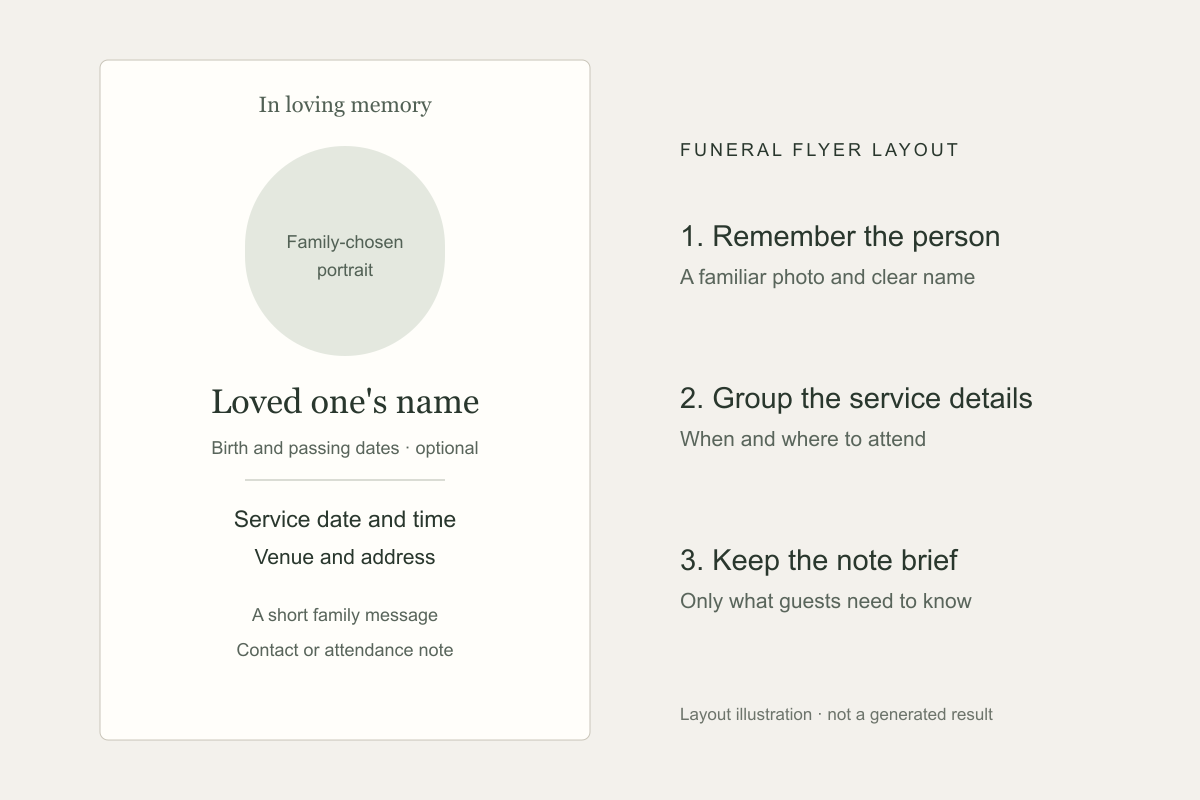
A funeral flyer can be simple: a familiar name, a photo if the family wants one, and clear information about the service. You do not need a long tribute to make it personal.
This guide covers a single-page funeral announcement, memorial service invitation, or celebration of life flyer. If you need readings, an obituary, and an order of service, plan those as a separate funeral program.
1. Confirm the service details
Gather the information in one note before you start the design. Confirm the spelling of the person's name and the arrangements with the family or organizer.
- Name: the full name, with a nickname or other familiar name if wanted.
- Service: the event name, full date, time, venue, and address.
- Optional details: birth and passing dates, a short family message, reception information, or a contact for questions.
If there is a visitation before the service or a reception afterward, label each time and location separately. Include RSVP, livestream, flower, or donation information only when it applies.
2. Choose the announcement wording
Use the event name and tone the family prefers. The examples below are starting points: replace the bracketed details and remove any line you do not need.
A sentence about a favorite memory or an invitation to gather is enough. Include a verse, quotation, or religious phrase only if the family has chosen it. Do not add details about the person's life or passing that have not been confirmed.
3. Choose a photo, style, and format
For a portrait design, choose a clear photo the family is comfortable sharing. Tell Vismuse which person to use and ask to keep their appearance recognizable. A memorial flyer can also work without a photo, using the name, generous spacing, and a simple border.
Choose colors and imagery that feel appropriate to the person. That might mean an understated cream background, favorite flowers, or brighter colors for a celebration of life. Keep decorative lettering to a short heading and use clear text for the date and address.
Use a square or 4:5 format for social sharing. For a printed handout, confirm the paper size first and request that shape. Check the downloaded pixel dimensions before deciding how large to print it.
4. Generate the flyer and revise it in chat
Choose a funeral flyer prompt below and paste the announcement you prepared in step 2 into [PASTE FINAL ANNOUNCEMENT]. Replace any remaining placeholders, such as [FORMAT], with your choices.
Open the Vismuse AI Flyer Generator, upload your photo if you are using one, and send the completed prompt.
Review the first result, then tell the agent what to change in the same chat. You can ask for a corrected time, a different portrait, or larger service details without moving text boxes in an editor.
Replace “[OLD SERVICE TIME]” with “[NEW SERVICE TIME]” exactly. Keep the portrait, colors, and other wording as close as possible.
Make “[FULL NAME]” and the service date easier to read. Reduce the flowers around the text and keep the current wording.
Use this newly uploaded portrait instead. Keep the person recognizable and retain the announcement wording and overall style.
Create a square version for sharing. Keep the wording and portrait, and rearrange the design so the service details remain readable.
Each revision creates a new image. Compare the whole result with the previous version and recheck the portrait and all wording, including details you did not ask to change.
5. Review with the family, download, and share
Ask a family member or organizer to review the final announcement. Check the name, dates, portrait, and service arrangements at the size people will see them. Confirm whether the notice is for public sharing or a private group.
If the flyer includes a memorial website or donation URL, open it separately and compare it with the printed text. A URL inside an image is not itself a clickable link; include a working link in the accompanying message when needed.
Download the chosen result as PNG or JPG. Eligible paid or unlocked original results also support PDF export. The PDF preserves the generated aspect ratio and does not automatically add bleed or crop marks. Confirm the resolution, dimensions, color requirements, and file format with your printer before ordering copies.
Funeral flyer checklist
- The name, spelling, and any birth or passing dates match the family's records
- The service date, time, venue, and address are confirmed
- Separate visitation, service, and reception times are clearly labeled
- The photo, wording, and any religious symbols reflect the family's wishes
- Attendance, contact, and donation details are correct and suitable for public sharing
- The text is readable at the intended size, and any print specifications are confirmed
Funeral flyer questions
What should a funeral flyer include?
Include the person's name and the service date, time, venue, and address. Add a portrait, life dates, short tribute, or contact note if the family wants them.
Is a funeral flyer the same as a funeral program?
A funeral flyer announces a service or gathering. A funeral program is usually distributed at the service and includes details such as readings, an obituary, and the order of service.
Can I make a celebration of life flyer instead?
Yes. Use the family's preferred event name, favorite colors, and chosen photo while keeping the gathering details clear.
Can I create a memorial flyer without a photo?
Yes. Ask for a design that emphasizes the name and service details, with a simple border or another motif the family chooses.
Can I change the text on an existing funeral flyer?
Upload the flyer or continue from a Vismuse result, quote the replacement wording, and explain what should stay. Check the whole revised image, including details you did not ask to change.
What size should a funeral flyer be?
Choose a square or 4:5 layout for social sharing, or match your printer's paper size for a handout. For print, also check the downloaded pixel dimensions; the aspect ratio alone does not determine print quality.
Related flyer resources
Create a funeral announcement in Vismuse
Start with the family's wording and chosen photo, then refine the design through chat.