
To edit a flyer online with Vismuse, you describe the result you want instead of selecting objects on a canvas. Continue from a flyer in your current chat or upload an existing flyer image, then ask the agent for a focused change.
Before and after
Edit the message and hierarchy without rebuilding the flyer by hand
This example keeps the dinner concept while making the price more prominent and the details easier to scan.
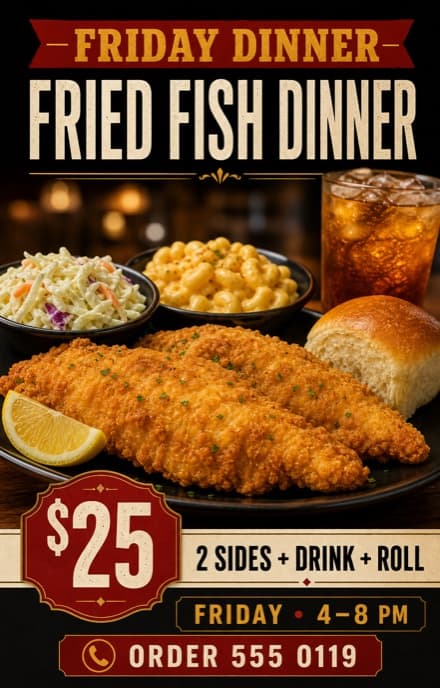
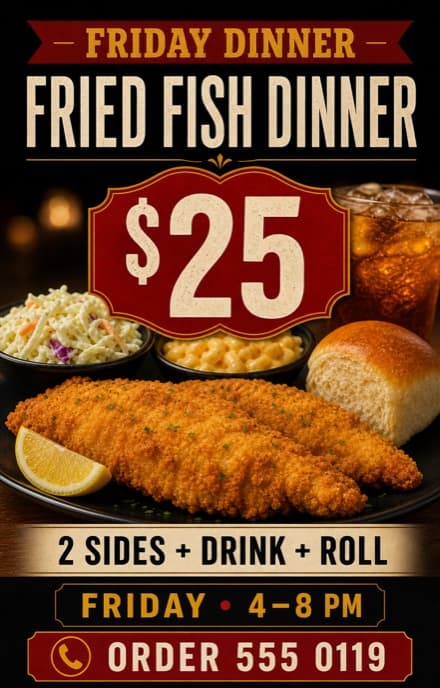
Edit request: “Keep the food image and colors. Make $25 the focus, simplify the layout, and make the phone number easier to scan.” The business details shown here are fictional.
Pick a starting point
Choose the flyer you want to edit
If Vismuse created the flyer, continue in the same chat. To edit an existing flyer from somewhere else, upload it as an image and tell the agent this is the design you want to revise.
Permission matters. Only upload and edit designs, logos, photos, and other material you own or have permission to use.
Set boundaries
Say what to change—and what to keep
A useful edit request has two parts: the outcome you want and the details that matter most to preserve. Be specific about the headline, images, colors, main person or product, logo, or overall direction.
Ask clearly
Send one focused edit request
Start with the most important correction. Quote exact replacement text, describe the desired visual outcome, and say what should remain as close as possible to the starting flyer.
Avoid vague requests. “Make it better” leaves the hierarchy, copy, and visual direction open to interpretation. Name the result you actually need.
Compare the result
Review the revised flyer
Review the requested edit and the rest of the flyer. Nearby text, image details, spacing, and proportions can also change.
Did the text, image, emphasis, color, or format change in the way you asked?
Did the important copy, subject, logo, and overall direction remain recognizable?
Are all names, dates, prices, addresses, and contact details still correct?
Does the revised hierarchy still work at the flyer’s real viewing size?
Keep refining
Continue editing or request an alternative
If the direction is right, make the next focused change in the same conversation. If you want a clearly different concept, ask for an alternative and list the text, images, and colors it should keep.
To revisit an earlier result, identify it by a visible detail—such as the version with the smaller red price badge—then describe the next change from that starting point.
Finish carefully
Export and complete a final check
Proofread the chosen flyer, check it at its intended viewing size, and download the flyer as a PNG or JPG. Eligible original results can also be exported as PDF.
For print, confirm exact dimensions, resolution, color, bleed, crop marks, and file format with the printer. A Vismuse PDF preserves the generated aspect ratio but does not automatically add bleed or crop marks.
Copy and adapt
AI flyer edit prompt examples
Use the example closest to your task, then replace its details with the exact change your flyer needs.
Correct text on a flyer
Replace “FRIDAY · 6–9 PM” with “FRIDAY · 4–8 PM” exactly. Keep the headline, price, food image, colors, phone number, and overall composition as close as possible to the current flyer.
Make the offer more prominent
Keep the current copy, food image, and black, cream, and red direction. Make “$25” the clear first read, reduce the visual weight of the supporting details, and keep the phone number easy to scan.
Replace the main image
Use my uploaded product photo as the main image. Keep the current headline, offer, brand colors, and call to action. Preserve the product’s label, shape, and proportions, and rebuild the surrounding layout to fit it naturally.
Simplify a busy flyer
Keep the headline, essential event details, main image, logo, and call to action. Remove unnecessary decoration, add more spacing, and organize the information into three clear levels.
Adapt the flyer for a Story
Create a 9:16 Story version of this flyer. Preserve the approved copy, main image, and visual identity, then rebalance the composition for the taller format instead of simply cropping it.
Set the right expectations
What to check when editing a flyer with AI
Before you publish
Edited flyer checklist
- The requested edit is present
- Important content and visual identity remain recognizable
- Every name, date, price, address, and contact detail is correct
- The headline and call to action are easy to find
- Faces, products, property details, and logos have been checked
- The format matches the intended placement
- You have permission to use every uploaded asset
- Print requirements are confirmed when applicable
Frequently asked questions
AI flyer editing FAQ
How can I edit a flyer online with AI?
Continue from a generated flyer in the same Vismuse chat, or upload an existing flyer image. Describe one exact change, name what should stay, review the revised image, and continue with another focused request if needed.
Can I upload an existing flyer and edit it?
Yes. Upload the flyer as an image, identify it as the design to revise, and describe the desired result. Clear requests work better than asking the AI to improve everything at once. Use only images and designs you have permission to edit.
Can AI change the text on a flyer?
Yes. Quote the current text and its exact replacement, and identify where it appears. Image generation can still introduce spelling or character errors, so proofread all visible copy after the revision.
Can I change only one part of a flyer?
You can ask for a narrow change and list what should remain. However, the edit generates a revised image rather than locking independent layers, so compare the full result and check for unintended changes.
Can Vismuse preserve a face, product, or logo?
Upload the approved source asset, explain its role, and state which identifying details must remain recognizable. Review each revision carefully because generated changes can affect appearance or proportions.
How is an AI flyer editor different from a drag-and-drop editor?
No. A traditional editor lets you select and move individual layers. Vismuse creates a revised flyer image from your instructions, so you direct the result through conversation instead of manipulating a canvas.
Can I return to an earlier flyer version?
Earlier results remain visible in the conversation. Refer to the version by a clear visual detail, then explain the next change you want from that starting point.
Keep exploring
Related flyer resources
Edit in chat
Edit your flyer with the Vismuse AI agent
Upload a flyer or continue from a generated result, then describe the next change.