
Most album cover tools send you to a canvas after the first result. Vismuse lets you keep directing the same cover in chat: change the background, fix the title, remove an extra person, or return to an earlier direction.
Use the AI album cover maker to start from your photo, add release text, and explore the download options.
What you’ll create
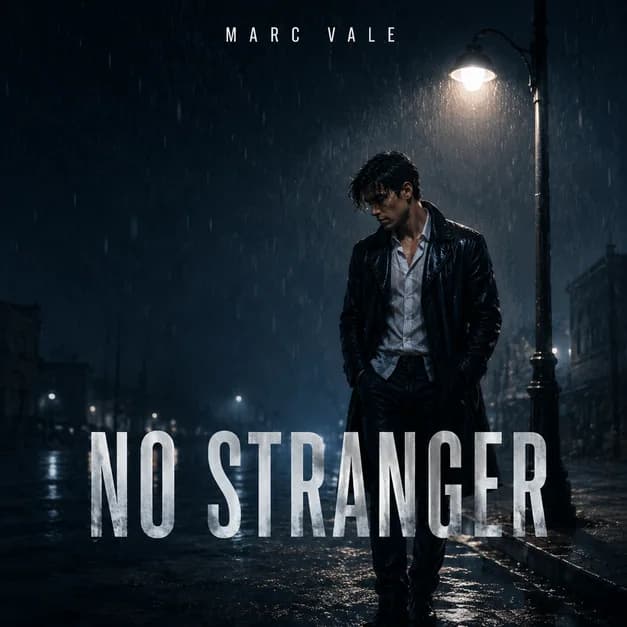
A photo-based cover should have:
- Recognizable subjectThe artist or band remains the visual anchor.
- Square compositionThe crop works as a 1:1 music cover.
- Genre and moodColor, light, texture, and setting match the sound.
- Title hierarchyThe release title and artist name have distinct roles.
- Thumbnail contrastThe subject and type still read at a small size.
Choose a clear source photo
Start with the sharpest photo you are allowed to use. A well-lit face, visible outline, and enough room around the subject make it easier to build a square cover without cutting off important details.
A selfie can work, but a portrait taken slightly farther back usually gives the generator more flexibility for the crop, title, and background. For a band, choose a photo where every member is visible and not hidden behind someone else.
- Use the highest-resolution original you have
- Choose one clear focal subject or a clearly arranged group
- Avoid heavy filters, motion blur, and tiny faces
- Leave some space around heads, hands, and instruments
Say what must stay the same
Tell the agent which identity, styling, and composition details it must preserve. Name the person, pose, clothing, expression, instrument, or group arrangement that should remain, then say what it may change.
AI can still alter fine facial details, so compare the result with the source photo before publishing. If identity drifts, continue in the same chat with one focused correction or upload a clearer portrait.
Describe the new cover direction
Connect the visual treatment to the music: name the release type, genre, mood, scene, lighting, and palette. Ask for a 1:1 square composition with one strong focal point and enough contrast to work as a small streaming thumbnail.
Be concrete. Instead of asking for a cool background, ask for a rainy city at night, a warm studio spotlight, a clean luxury set, or a grainy rehearsal room.
Add the artist name and release title
Put every required word in quotation marks and identify its role. Give the artist name and release title separate placement and style instructions, then check every letter in the result.
Short text is more reliable and easier to read at thumbnail size. If a word is wrong, tell the agent the exact correction and ask it to leave the portrait, background, and layout alone.
Keep refining the same cover in chat
After the first result, stay in the conversation and describe the next change in ordinary language. The agent works from the current cover, so you do not need to select layers, paint a mask, or rebuild the composition in a design editor.
Say what is already right before naming the change. If a revision damages something that was correct, describe the earlier detail to restore and the newer changes to keep; the agent can clarify if the target is ambiguous.
- Keep the face and pose; make only the background darker
- Keep the image; correct only the misspelled title
- Keep the current colors; move the artist name higher
- Remove the extra person; preserve the main subject and layout
One cover, one conversation
Create the cover, then keep editing in chat
The first message can contain the full creative brief. After that, use short, focused follow-ups. The agent continues from the current cover and preserves the details you say are already working.
Be specific about versions. If you want to revisit an earlier result, name the visible detail that identifies it. If the reference is unclear, the agent may ask which version you mean.
How Vismuse differs
AI agent vs. canvas editor
Canvas editors work well when you want to position every element yourself. Vismuse is for directing the result in plain language and revising it without opening a canvas.
| Task | Vismuse AI agent | Template or layer editor |
|---|---|---|
| Replace the background | Describe the new scene and what must stay unchanged. | Remove, mask, or layer the subject over a new background. |
| Correct the title | Send the exact replacement and ask to change only that text. | Select the text layer, replace the copy, and check its styling. |
| Preserve the artist | Tell the agent to keep the face, pose, clothing, and crop. | Cut out, composite, and adjust the subject manually. |
| Make a follow-up edit | Continue from the current cover in the same conversation. | Reopen the canvas and choose the relevant tools or layers. |
| Best fit | Fast creative direction without learning design software. | Pixel-level control over placement, masks, and typography. |
Choose chat when you want to direct the result in plain language. Choose a traditional editor when an exact coordinate, mask edge, kerning value, or other pixel-level adjustment matters more than speed.
Start from a visual direction
Photo-to-album-cover inspiration
These Vismuse examples show four popular portrait-based directions. Open one, add your photo and release details, then continue in chat.
Rain Portrait SingleA cinematic night portrait with clear title space and a strong photo-to-cover structure.Open and continue in chat  Luxury Portrait CoverA polished black-and-gold direction for R&B, soul, and premium artist branding.Open and continue in chat
  Street Portrait CoverAn urban night treatment built around a person, city lighting, and bold lower-third type.Open and continue in chat
  Dark Photo CoverA face-forward dark portrait with restrained texture and space for release copy.Open and continue in chat
 Troubleshooting
Fix common photo-to-cover problems
| Problem | What to ask for next |
|---|---|
| The face changed | Return to the strongest version, attach a clearer face reference, and request only one background or text change. |
| An extra person appeared | Say who the only subject should be and ask to remove every other figure while preserving the current layout. |
| The title is misspelled | Quote the exact replacement and ask to change only that text block, not the artwork. |
| The crop feels like a poster | Ask for a tighter 1:1 composition with the subject and title readable at streaming-thumbnail size. |
| The result looks generic | Add one specific setting, one lighting direction, one texture, and a limited color palette tied to the song. |
Before you release
Final album cover checklist
- The subject still matches the source photo
- Every title and artist-name letter is correct
- Important details remain inside the square crop
- The cover is recognizable at thumbnail size
- You have rights to the photo, logo, and other references
- The exported file meets the distributor's current requirements
Frequently asked questions
Photo-to-album-cover FAQ
Can I turn a photo into an album cover with AI?
Yes. Upload a portrait, selfie, or band photo, identify what should stay recognizable, and describe the new square composition, background, mood, title, and artist name. Review identity and text carefully before publishing.
How do I keep the same face in an AI album cover?
Use a sharp, well-lit portrait and ask the agent to preserve the face, hairstyle, expression, and pose. Make one focused change at a time, and always compare the result with the source photo.
Can I use a selfie for album cover art?
A selfie can work when the face is sharp and evenly lit. A photo taken slightly farther back often gives the generator more room to create a square crop, show clothing, and place the title without covering the subject.
How should I add the artist name and album title?
Put the exact text in quotation marks, label which line is the artist name and which is the release title, and specify a location for each. Proofread every letter and request a text-only correction if needed.
Can I change the background without changing the person?
Yes. Continue in the same chat, ask the agent to keep the person, face, pose, clothing, and crop unchanged, then describe only the new background. A focused edit is more predictable than combining several unrelated changes.
Do I need a design editor to revise the cover?
No. In Vismuse, you can ask the AI agent for follow-up changes in the same chat instead of selecting layers, drawing masks, or moving elements on a canvas. A traditional editor is still a better fit when you need exact pixel-level control.
What photos can I legally use for an album cover?
Use photos you own or have permission to transform and publish. Confirm rights for photographer-owned images, band photos, logos, artwork, and other references, and check the finished cover for unintended protected material before release.
Keep exploring
Related album cover resources
From photo to release artwork
Create your album cover with the AI agent
Upload your image, describe the cover, and ask for follow-up changes in chat.