
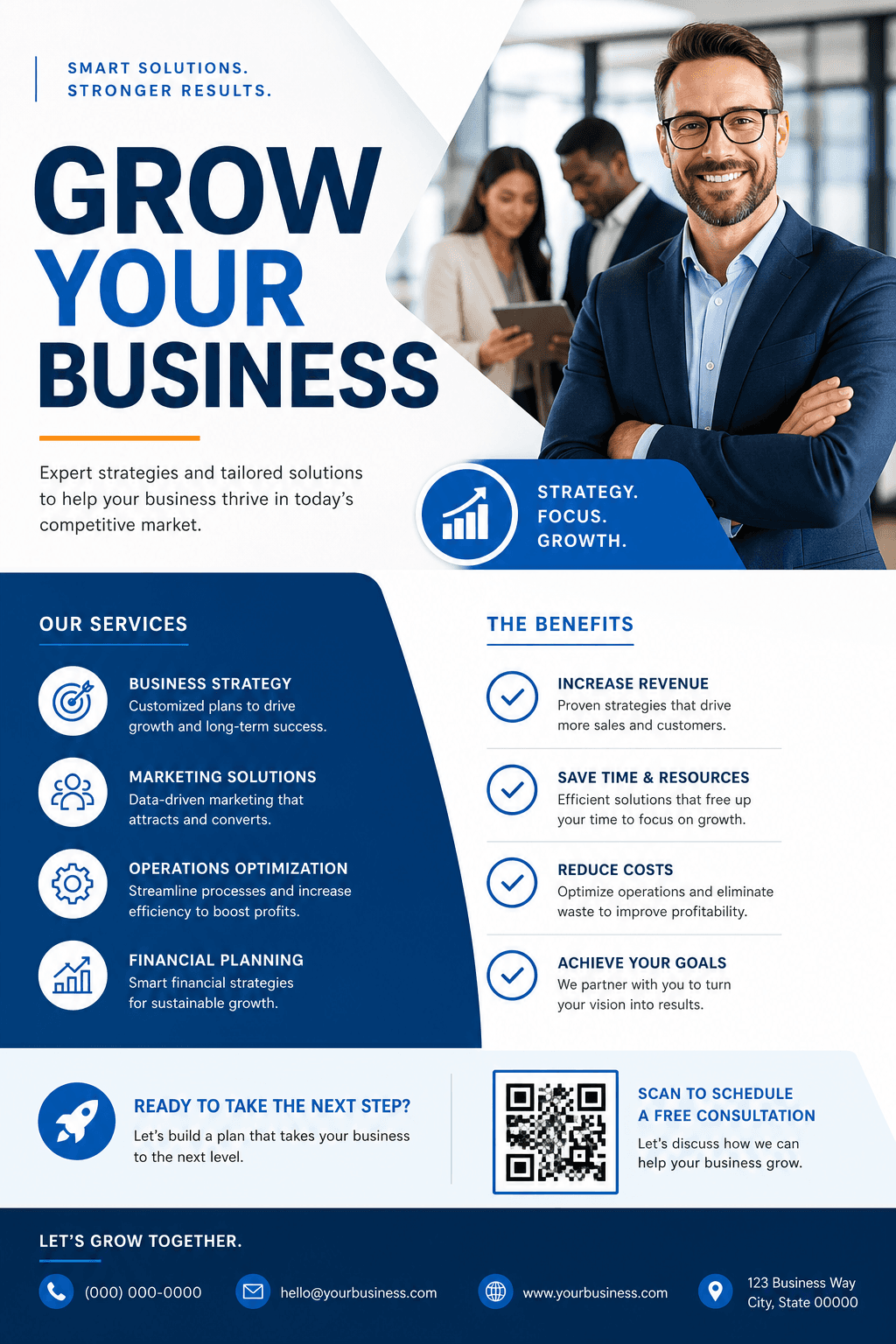
A business flyer should make the offer and next step clear at a glance. With the Vismuse AI business flyer generator, you create the first draft and refine it in chat.
For different business goals
Business flyer examples
Flyers for local services, retail promotions, and professional firms may use different imagery, but the visual should always support the campaign goal.


Start with the outcome
Choose one audience, goal, and action
Decide who should respond and what they should do next. A service flyer may seek quote requests, a shop may promote a limited sale, and a hiring flyer may direct applicants to one application method. Avoid trying to explain the whole company.
Prepare accurate content
Write an offer customers can act on
Pair a specific benefit with one action: “[SERVICE] FROM [PRICE] — CALL [NUMBER] FOR A QUOTE.” Add the service area and offer deadline when relevant. Use only claims, credentials, and prices the business can verify.
Using a logo or photo? Upload the approved asset, explain its role, and state what must remain recognizable.
Set the visual priority
Make the benefit and contact action stand out
Decide whether the benefit, offer, product, or service should lead. Use one strong image, a limited brand palette, and enough space for the headline and action to remain easy to scan.
Choose the format before generating: 1:1 or 4:5 for many feed posts, 9:16 for Stories, or a portrait shape for a printed handout. Request a separate layout for each important placement.
Generate the business flyer and check the offer
Choose a prompt, replace the placeholders, and upload your approved logo or product photo. Make the customer benefit and contact action clear. Send the prompt in Vismuse to generate the first draft.
Check the offer, service area, deadline, and contact details. Place eligibility conditions beside the discount so customers can see who qualifies.
Ask for changes in the same chat. For example: “Keep the logo and service photo. Make “[OFFER]” the headline and place “[ELIGIBILITY AND DEADLINE]” directly below it.”
Each revision creates a new image, so recheck details you did not ask to change.
Test the booking URL or phone number. Download as PNG or JPG, or export an eligible original as PDF. For print, confirm sizing and resolution with your printer; PDF export does not automatically add bleed or crop marks.
New to Vismuse? Follow the step-by-step flyer creation guide. For changes to an existing design, see how to edit a flyer with AI.
Avoid these problems
Common business flyer mistakes
Before you publish
Business flyer checklist
- The main benefit, offer, or announcement is easy to notice
- Business name, dates, prices, contact details, and service area are correct
- Claims, credentials, and terms are verified
- There is one clear call to action
- Logos and uploaded images are approved and recognizable
- Text is readable in the intended format, and print requirements are confirmed when needed
Frequently asked questions
How to make a business flyer: FAQ
How do I make a business flyer with AI?
Choose one audience, promotion, and call to action. Add the exact business details, approved logo or photo, brand direction, and intended format. Generate a draft, review it, and request focused changes in the same chat.
What should a business flyer include?
Include the business name, a specific benefit or offer, only the details needed to support it, and one call to action. Add contact information, dates, prices, location, or proof points when they help someone act.
Can I use my business logo and product photos?
Yes. Upload approved files, explain the role of each one, and state what must remain recognizable. Review the generated result and use only assets you have permission to publish.
Can I update an existing business flyer?
Yes. Upload the flyer or continue from a Vismuse result, quote the exact change, and name what should stay. Each edit creates a revised image rather than changing independent layers, so check the whole result again.
Can I print a business flyer made with Vismuse?
You can download results as PNG or JPG, with PDF export available for supported original results. The PDF preserves the generated aspect ratio and does not automatically add bleed or crop marks, so confirm dimensions, resolution, color, bleed, and file requirements with your printer.
Keep exploring
Related flyer resources
From campaign brief to finished flyer
Create and revise your business flyer with the AI agent
Send the message and approved brand assets, then request changes in the same chat.